File converter: convert images and photos to JPG, PNG or PDF
A free image converter that works in your browser: turn HEIC into JPG, PNG or WebP into JPG, or several photos into one PDF. Your files never leave your device.
Your images are converted in your browser and never leave your device: nothing is uploaded to Drime or anywhere else.
Keep your converted images safe with Drime
Store your photos in the cloud and find them on all your devices, share them with a link you control, and keep your most sensitive files in an end-to-end encrypted Vault.
Get started for free
Private by design
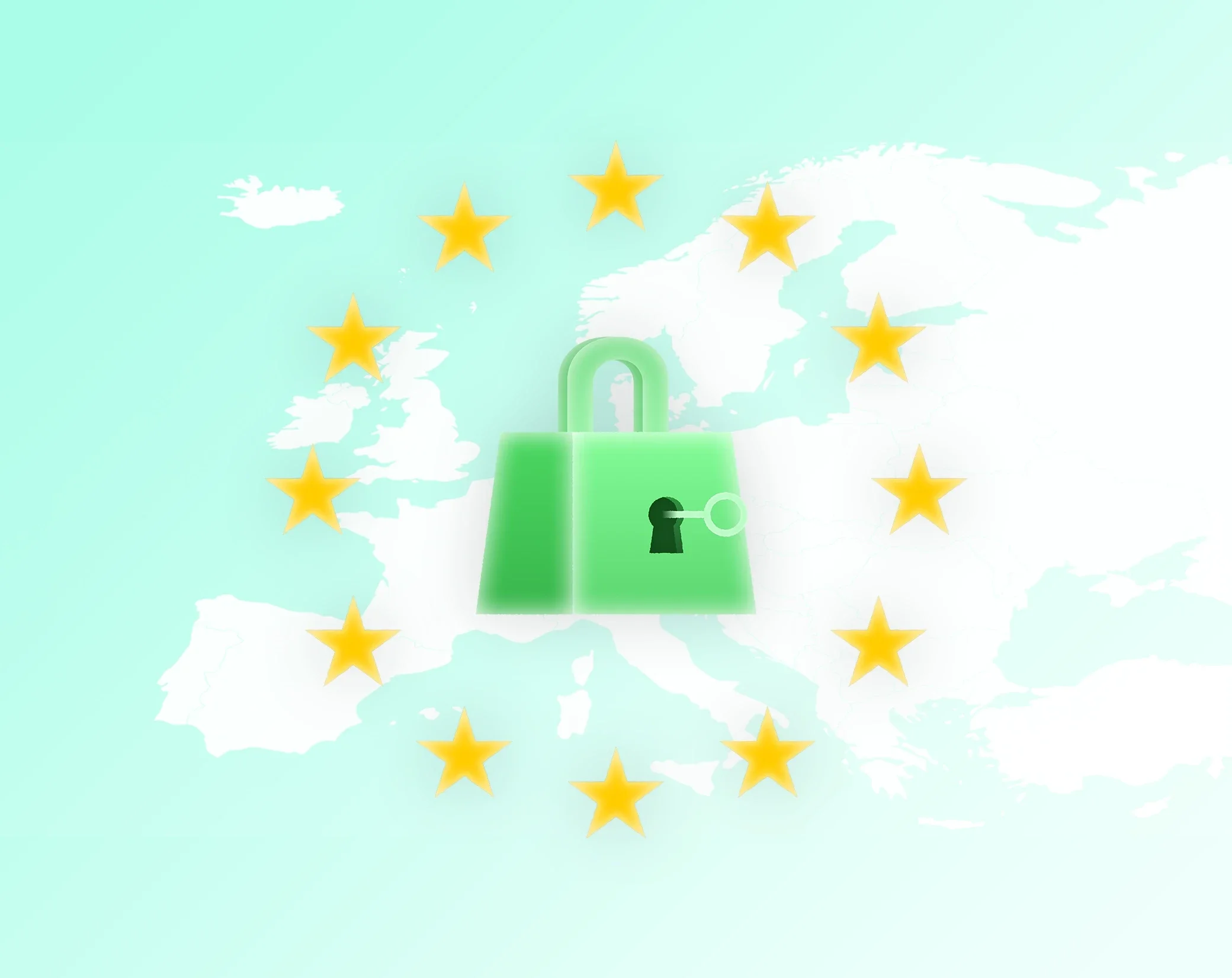
Encrypted in transit and at rest, end-to-end in the Vault, in certified European data centers.

Synced everywhere
Every change updates on all your devices the moment it happens, desktop, mobile, and browser.

Sharing you control
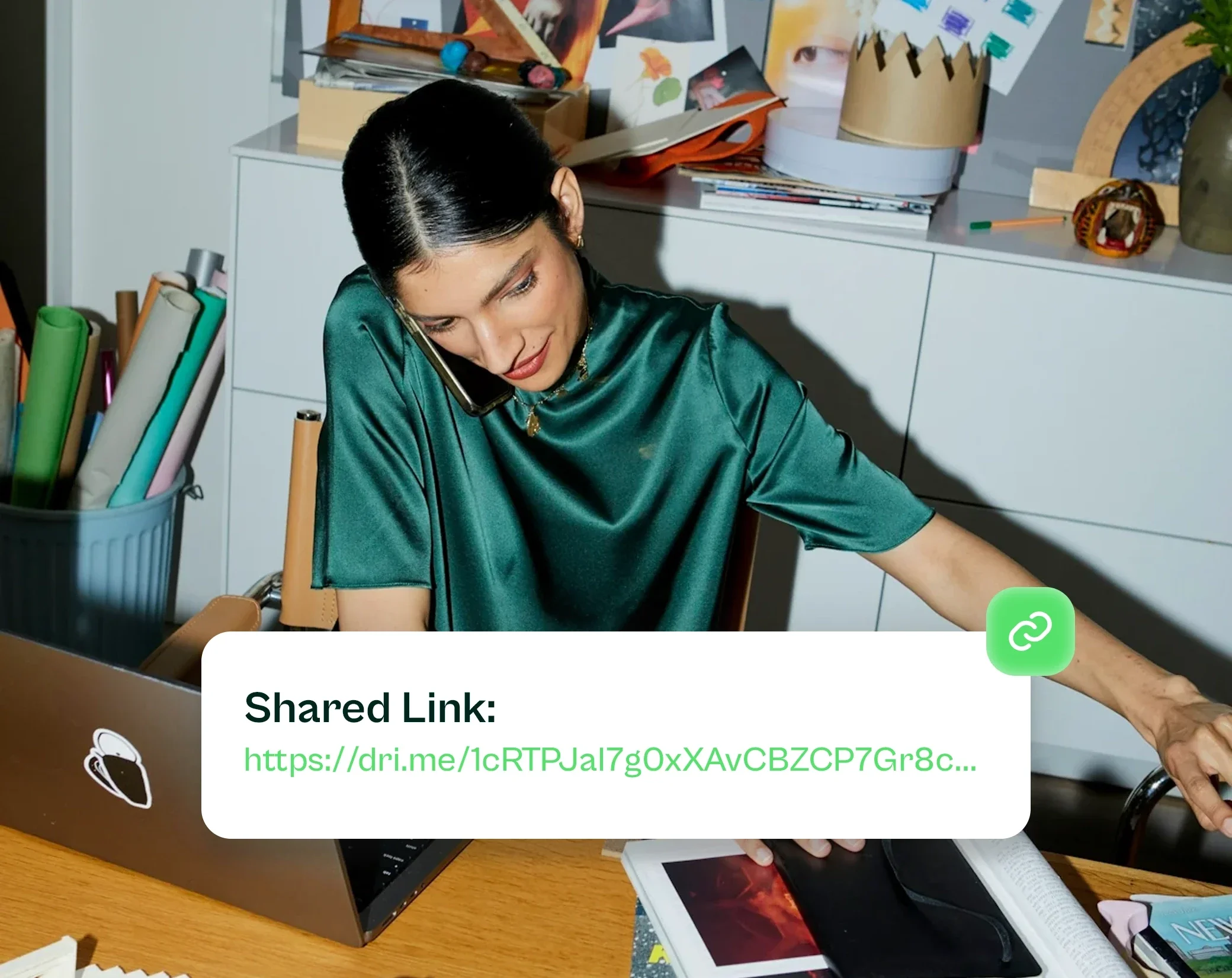
Send files with secure links, set permissions, and see exactly when they’re opened.
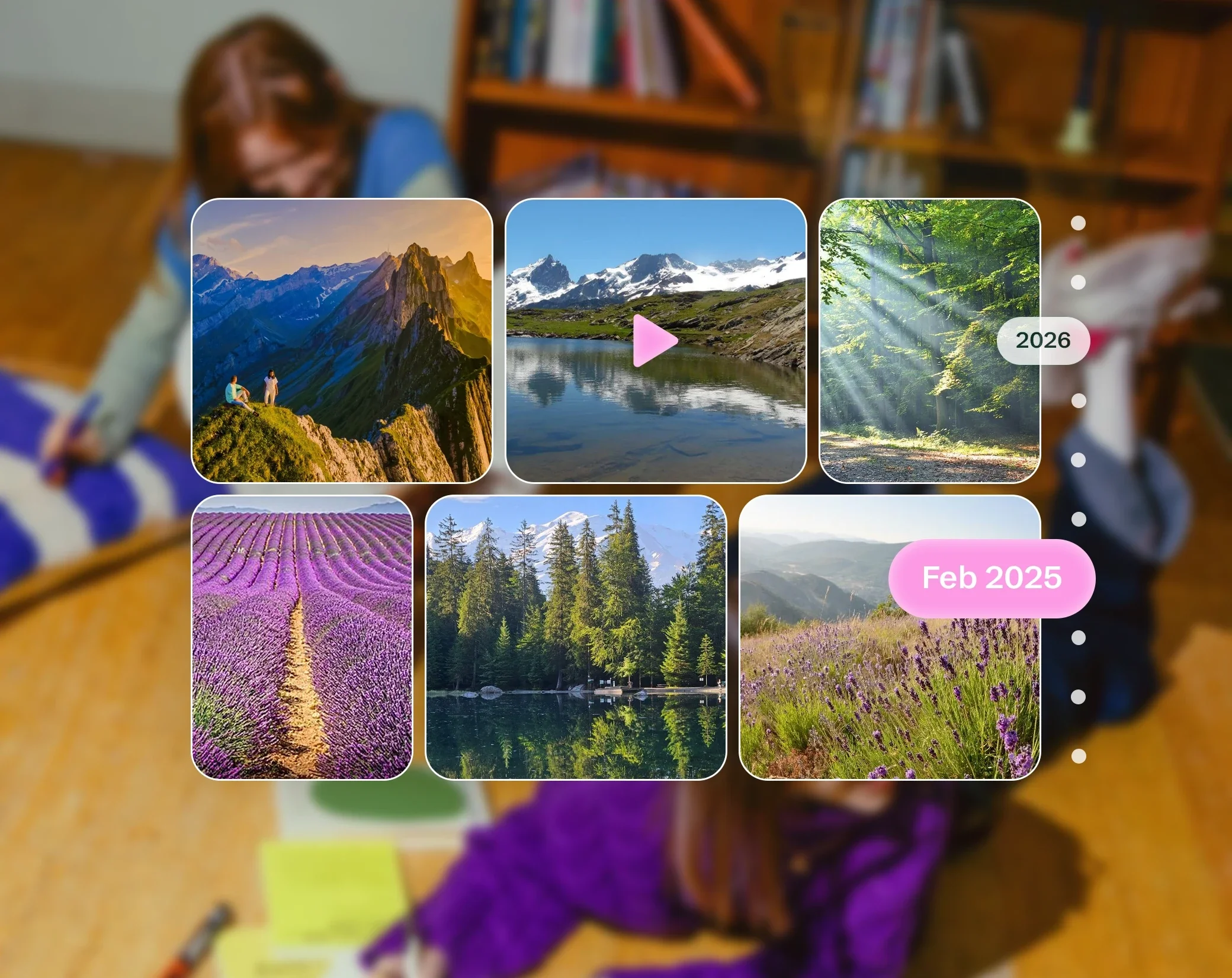
Convert JPG, PNG, WebP, GIF, BMP, SVG and HEIC images
The converter opens JPG, PNG, WebP, GIF, BMP, SVG and HEIC/HEIF images, and AVIF if your browser can read it. It saves them as JPG, PNG, WebP or PDF, and as AVIF when your browser can create that format.
The most common conversions are HEIC to JPG, for iPhone photos that won't open elsewhere, PNG to JPG and WebP to JPG, for images a site or an app refuses, and SVG to PNG. For JPG and WebP, you can set the quality, 90% by default.
A few things to know: a transparent image converted to JPG gets a white background, and only the first frame of an animated GIF is converted. TIFF files are not supported.
How to convert an image in 3 steps
Add your images. Drop them on the page, or click Choose files. You can add several at once.
Choose the output format. Pick JPG, PNG, WebP or PDF, and set the quality for JPG and WebP if you want. For a PDF, choose One PDF for all your images, or One PDF per image.
Download your converted files. Click Convert, then Download next to each file, or Download all (ZIP) to get them together. Each file keeps its name, with its new extension.
Private by design: nothing is uploaded
Your images are converted inside your browser, on your device. They are never sent to Drime or to anyone else, which matters for personal photos and scanned documents. Like the rest of the site, the page counts visits, but never your files.
The converter also leaves out the hidden information photos carry, such as the GPS location and the camera details, and it keeps the photo the right way up.
Once the page has loaded, conversions to JPG, PNG and WebP work without an internet connection. The PDF, ZIP and HEIC tools load the first time you use them.
Convert multiple images at once
Add as many images as you need, within the limit shown under the drop zone, and convert them in one go. Each converted file can be downloaded on its own, or all of them together with Download all (ZIP).
To combine several images into one PDF, choose PDF as the output: by default, the converter makes a single PDF with one image per page, in the order you added them. Each page takes the size of its image. If you prefer separate files, choose One PDF per image: you then get one PDF for each image, in a ZIP.
Frequently asked questions
What is a HEIC file?
HEIC, or HEIF, is the image format iPhones and iPads use for photos by default. It keeps good quality in smaller files than JPG, but many Windows apps, websites and older devices can't open it. Converting a HEIC photo to JPG makes it readable almost everywhere.
Why are my photos HEIC instead of JPG?
Your iPhone or iPad saves photos in HEIC to use less storage. You can keep taking them that way and convert the ones you need to share: drop them on this page, choose JPG and download them. The converted files keep their names, with the .jpg extension.
How do I convert HEIC to JPG on Windows?
Open this page in your browser on Windows, drop your HEIC photos, choose JPG and click Convert. If your browser can't read HEIC on its own, the page loads a HEIC decoder the first time, once. Nothing is installed on your computer and your photos are not uploaded.
Are my photos uploaded to convert them?
No. The conversion happens in your browser, on your device: your photos are never sent to Drime or to anyone else. The converter also leaves out hidden details such as the GPS location and the camera model from the converted images.
Does converting PNG to JPG reduce quality?
JPG compresses images, so a small loss is possible, especially on text and sharp edges. The quality setting, 90% by default, lets you choose between a smaller file and a sharper image. Transparent areas of a PNG become white in JPG: keep PNG if you need transparency.
Can I convert multiple images at once?
Yes. Add several images, choose the output format and click Convert. You can download each converted file on its own, or all of them in one ZIP file. The number of files and their size are limited: the limits are shown under the drop zone.
How do I combine multiple images into one PDF?
Add your images, choose PDF as the output and keep One PDF selected. The converter makes a single PDF with one image per page, in the order you added them, and each page takes the size of its image. Choose One PDF per image to get separate files instead.
Is this image converter free?
Yes. The converter is free and needs no account. If you want a safe place for your photos once they are converted, Drime offers cloud storage with a free plan of 20 GB, and an end-to-end encrypted Vault for your most sensitive files.