Free online PDF editor
A free PDF editor that works in your browser: add text, draw, highlight, insert shapes, images and your signature, and reorder, rotate or delete pages. Your PDF never leaves your device.
Your PDF is edited in your browser and never leaves your device: nothing is uploaded to Drime or anywhere else.
Keep your PDFs safe with Drime
Store your documents in the cloud and find them on all your devices, share them with a link you control, and keep your most sensitive files in an end-to-end encrypted Vault.
Get started for free
Every format covered
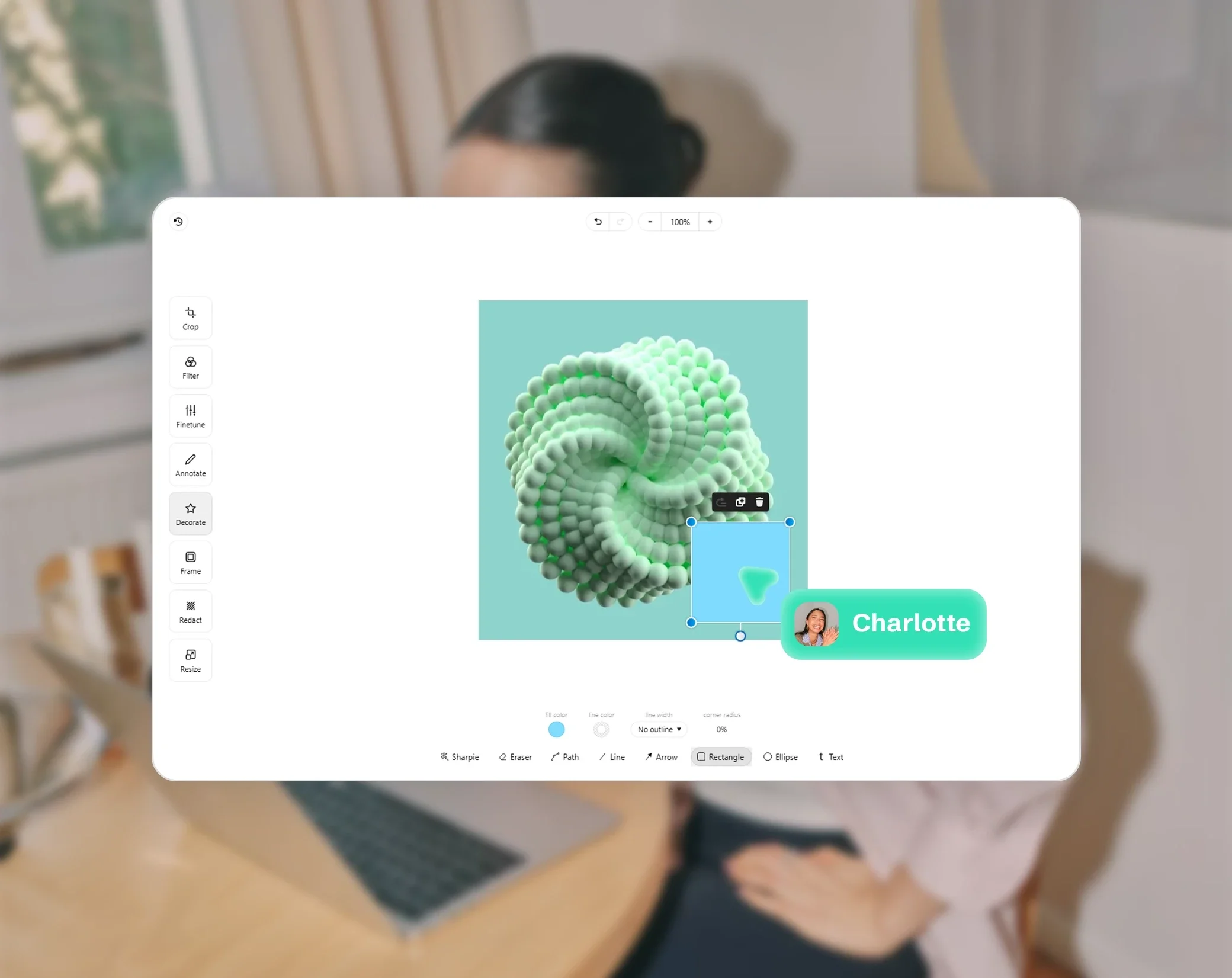
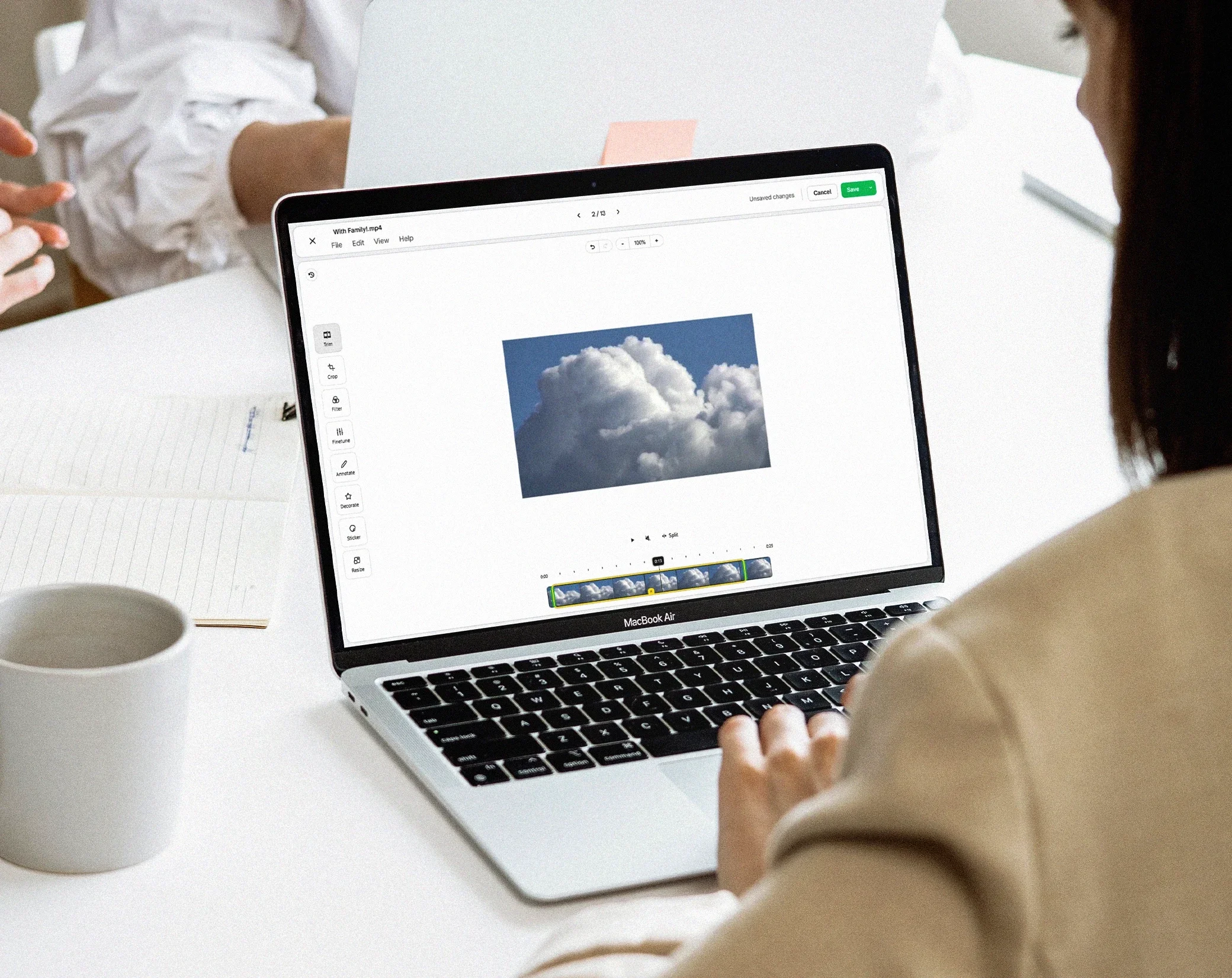
Docs, sheets, slides, images, videos, PDFs and audio: open and edit them all in Drime.

Real-time collaboration
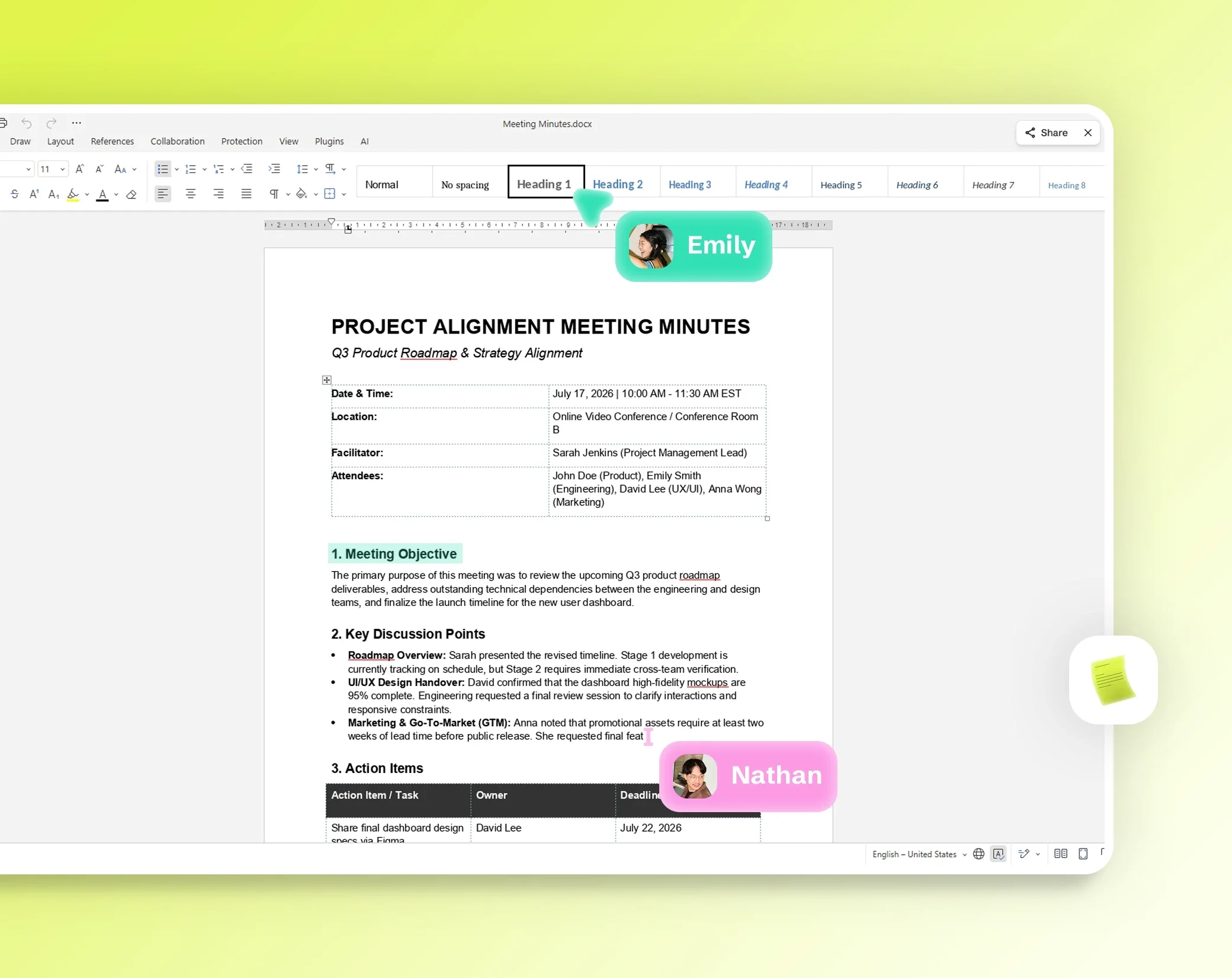
Co-edit documents with your team, live. Comments and changes sync instantly.

Hosted by Drime, in Europe
Your OnlyOffice suite runs on Drime’s European infrastructure. Nothing leaves your cloud.
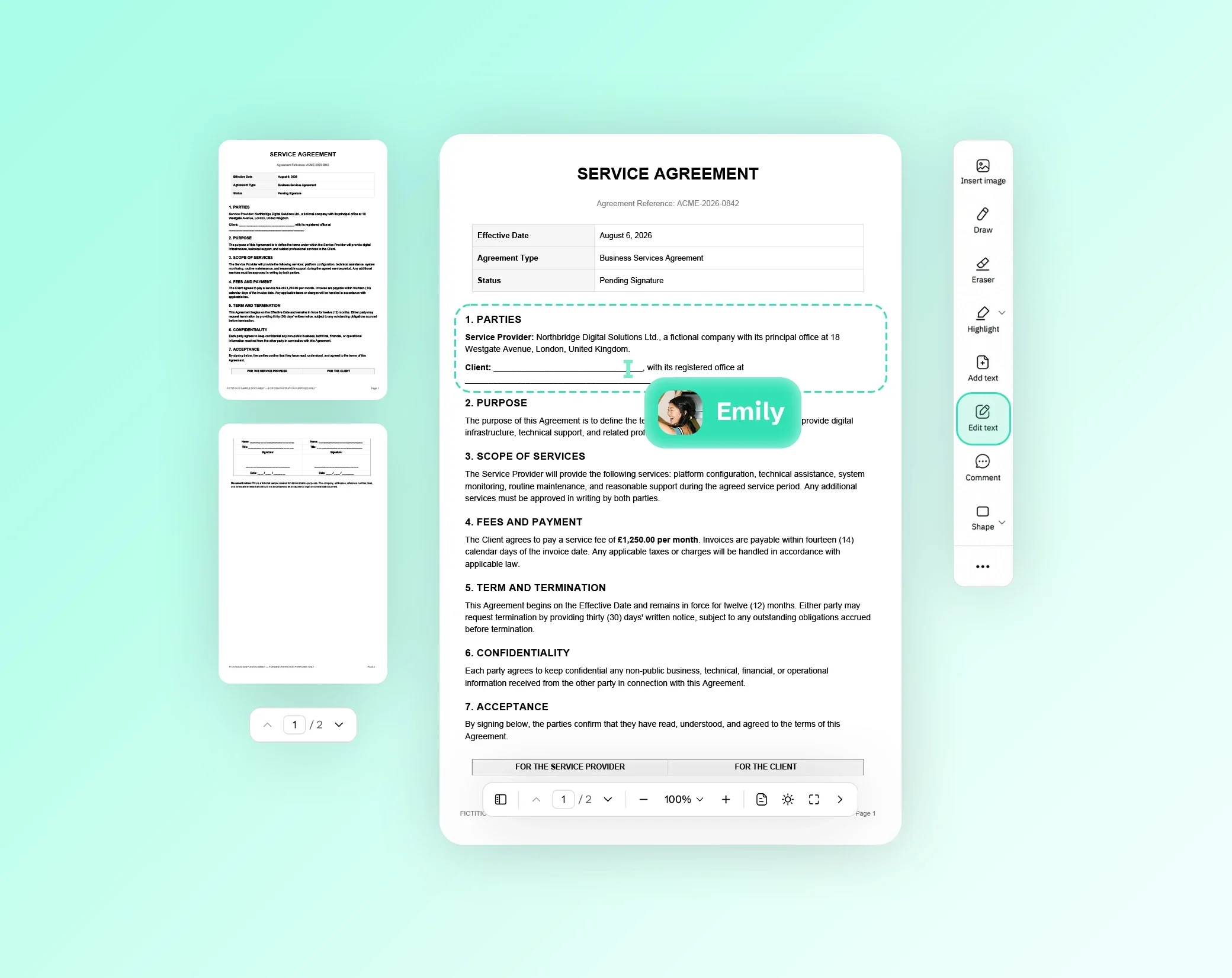
Edit a PDF in your browser
Open a PDF on this page and edit it right away, with no account and nothing to install. You can add text, draw with a pen, highlight passages, add shapes and arrows, insert an image or your signature, and organize the pages.
Everything you add is written into the PDF when you download it. Drawings and shapes stay sharp at any zoom, and the text you add is real text: it can be selected and searched. The original pages are kept as they are, so their text stays selectable too.
This editor adds to your PDF: it does not change the text already in it. To correct that text, use the PDF editor in the Drime app, as explained below.
How to edit a PDF in 3 steps
Open your PDF. Drop it on the page, or choose it from your device. A PDF can weigh up to 200 MB on a computer with Chrome or Edge, and 100 MB in other browsers and on most phones, with any number of pages.
Add what you need. Pick a tool: text, pen, highlighter, shape, image or signature, then click where it goes on the page. You can move, resize or rotate what you added, erase a stroke with the eraser, undo a change, and reorganize the pages in the column on the left.
Download your PDF. The edited PDF is created in your browser, with your additions and your new page order, ready to send, print or store.
Add text, drawings, highlights and shapes
Add a text box anywhere on a page, then choose its size, its color, bold, the alignment and the angle. Added text can use Latin, Greek and Cyrillic letters, Vietnamese, Japanese and Chinese. Emoji and Korean are not available yet: the editor tells you if a character can't be added.
The pen is for handwritten notes and the highlighter marks a passage while the text below stays readable. For diagrams and reviews, add rectangles, ellipses, lines and arrows, with the color and thickness you want and an optional fill.
You can also insert an image: JPG and PNG files are added as they are, and other image formats are converted to PNG.
Sign a PDF with your own signature
To sign a form, a quote or a letter yourself, draw your signature, then place it on the page and adjust its size. It is written into the PDF like everything else you add, and nothing is sent anywhere.
If you need other people to sign a document, use Drime Sign instead: you send the document to each signer, follow who has signed, and get the signed PDF with its audit certificate.
Reorder, rotate, delete or add pages
The pages of your PDF are shown in a column on the left. Move a page to put it in a new place, rotate a page that was scanned sideways, delete the ones you don't need, or add a blank page for your notes.
Your changes are applied when you download the PDF: pages keep their content, and their text stays selectable.
Private by design: your PDF never leaves your device
Your PDF is opened and edited inside your browser, on your device. It is never uploaded to Drime or to anyone else, which matters for contracts, forms and personal documents. Nothing is stored on a server, so there is nothing to delete afterwards. Like the rest of the site, the page counts visits, but never your files.
Password-protected PDFs can't be opened here. Remove the protection first, then open the PDF again.
Need to change the existing text?
This free editor adds text, drawings and images, but it does not change the text already written in a PDF. To correct a word, a date or a figure in the document itself, use the PDF editor in the Drime app: its Edit text tool changes the PDF's own text, and the app also offers comments, crop, stamps and forms.
Create a free Drime account with 20 GB of storage, upload your PDF, open it, then choose Edit in Drime.
Frequently asked questions
Is this PDF editor free?
Yes. The editor is free and needs no account: open your PDF, edit it and download it. If you want a safe place for your documents, Drime offers cloud storage with a free plan of 20 GB, and an end-to-end encrypted Vault for your most sensitive files.
Do I need an account to edit a PDF?
No. You can open, edit and download your PDF without signing up. A free Drime account is only useful if you want to keep your PDFs in the cloud, or to change the existing text with the PDF editor in the Drime app.
Can I edit the existing text in a PDF?
Not with this tool: it adds text, drawings and images, but does not change the text already in the PDF. The PDF editor in the Drime app does, with its Edit text tool. Create a free account, upload your PDF, open it and choose Edit in Drime.
How do I add text to a PDF?
Open your PDF on this page, choose the text tool and click where the text should go. Type it, then set its size, color, bold and alignment. The text is written into the PDF as real text, so it can be selected and searched. It works in Japanese and Chinese too; emoji and Korean are not available yet.
How do I sign a PDF?
Open your PDF, draw your signature, place it on the page and download the PDF. Everything happens in your browser. To send a document to other people for signature and follow who has signed, use Drime Sign.
Are my PDF files uploaded?
No. Your PDF is opened and edited in your browser, on your device, and it is never sent to Drime or to anyone else, which matters for contracts, forms and personal documents. Like the rest of the site, the page counts visits, but never your files.
Can I edit a PDF on a Mac, an iPhone or Android?
Yes. The editor works in your web browser, so there is nothing to install: open this page in Safari, Chrome, Firefox or Edge, on a Mac, a Windows PC, an iPhone or an Android phone. Your PDF is edited on the device you use, and the download is saved there.
How do I save my edited PDF?
Click download: the edited PDF is created in your browser and saved to your device, with your additions and your page order. Keep the original if you may need it again, since the edited file is a new PDF.