%22%3E%0D%0A%3Cpath d=%22M76.678 2.56445H31.5757C14.1489 2.56445 0 16.723 0 34.12V124.386C0 141.866 14.1489 155.941 31.5757 155.941H76.7195C97.8807 155.941 117.05 147.347 130.909 133.479C144.809 119.652 153.356 100.428 153.356 79.2528C153.315 36.9019 119 2.56445 76.678 2.56445Z%22 fill=%22%2356E16C%22/%3E%0D%0A%3Cpath d=%22M276.422 11.9103L186.549 101.844C166.592 121.815 180.74 155.986 208.955 155.986H298.828C316.338 155.986 330.528 141.786 330.528 124.265V34.3314C330.528 6.09744 296.38 -8.06106 276.422 11.9103Z%22 fill=%22%2356E16C%22/%3E%0D%0A%3Cpath d=%22M253.896 179.567C211.574 179.567 177.218 213.863 177.218 256.255V301.43C177.218 318.827 191.367 332.985 208.794 332.985H298.999C316.467 332.985 330.574 318.827 330.574 301.43V256.255C330.574 235.08 321.985 215.897 308.127 202.029C294.31 188.12 275.099 179.567 253.938 179.567H253.896Z%22 fill=%22%2356E16C%22/%3E%0D%0A%3Cpath d=%22M121.573 179.567H31.7002C14.1904 179.567 0 193.767 0 211.289V301.222C0 329.456 34.1483 343.614 54.1061 323.643L143.979 233.71C163.937 213.738 149.788 179.567 121.573 179.567Z%22 fill=%22%2356E16C%22/%3E%0D%0A%3Cpath d=%22M497.237 336.016V2.56519H648.933C752.374 2.56519 817.559 66.2576 817.559 169.312C817.559 272.365 752.415 336.058 648.933 336.058H497.237V336.016ZM550.43 50.8535V287.77H648.933C726.026 287.77 760.838 254.927 760.838 169.312C760.838 83.6963 726.026 50.8535 648.933 50.8535H550.43Z%22 fill=%22%2356E16C%22/%3E%0D%0A%3Cpath d=%22M837.435 336.024V88.6858H886.687V155.368H890.172C897.641 115.55 924.487 83.7034 975.232 83.7034C1031.45 83.7034 1055.81 124.02 1055.81 170.813V203.158H1002.58V181.277C1002.58 145.943 987.638 129.5 950.834 129.5C908.553 129.5 891.168 152.877 891.168 197.179V336.024H837.435Z%22 fill=%22%2356E16C%22/%3E%0D%0A%3Cpath d=%22M1069.68 88.6816V336.019H1123.42V88.6816H1069.68Z%22 fill=%22%2356E16C%22/%3E%0D%0A%3Cpath d=%22M1153.24 336.024V88.6858H1202.49V163.34H1205.48C1211.95 122.027 1238.8 83.7034 1300.5 83.7034C1356.72 83.7034 1387.05 118.041 1394.02 165.333H1397.01C1403.48 123.023 1431.33 83.7034 1493.98 83.7034C1556.63 83.7034 1590.49 127.508 1590.49 187.214V336.024H1537.26V201.622C1537.26 152.835 1517.88 131.95 1470.12 131.95C1417.38 131.95 1398.5 158.814 1398.5 213.58V336.024H1345.27V201.622C1345.27 152.835 1326.39 131.95 1278.63 131.95C1225.4 131.95 1207.02 158.814 1207.02 213.58V336.024H1153.28H1153.24Z%22 fill=%22%2356E16C%22/%3E%0D%0A%3Cpath d=%22M1608.83 212.589C1608.83 135.444 1661.56 83.668 1742.14 83.668C1822.72 83.668 1870.98 125.977 1870.98 201.129C1870.98 210.098 1870.48 217.073 1868.98 224.506H1659.07C1661.06 272.296 1684.43 297.665 1741.64 297.665C1793.38 297.665 1814.75 280.724 1814.75 251.369V247.383H1868.49V251.868C1868.49 304.64 1816.74 340.971 1743.14 340.971C1662.06 340.971 1608.83 295.173 1608.83 212.548V212.589ZM1659.53 194.694H1820.19V193.697C1820.19 147.9 1793.84 126.019 1741.1 126.019C1688.37 126.019 1662.52 150.391 1659.53 194.694Z%22 fill=%22%2356E16C%22/%3E%0D%0A%3Cpath d=%22M1096.52 66.1011C1114.76 66.1011 1129.55 51.304 1129.55 33.0508C1129.55 14.7976 1114.76 0.000488281 1096.52 0.000488281C1078.28 0.000488281 1063.49 14.7976 1063.49 33.0508C1063.49 51.304 1078.28 66.1011 1096.52 66.1011Z%22 fill=%22%2356E16C%22/%3E%0D%0A%3C/g%3E%0D%0A%3Cdefs%3E%0D%0A%3CclipPath id=%22clip0_587_4308%22%3E%0D%0A%3Crect width=%221870.94%22 height=%22341.008%22 fill=%22white%22/%3E%0D%0A%3C/clipPath%3E%0D%0A%3C/defs%3E%0D%0A%3C/svg%3E%0D%0A)
%22%3E%0D%0A%3Cpath d=%22M76.678 2.56445H31.5757C14.1489 2.56445 0 16.723 0 34.12V124.386C0 141.866 14.1489 155.941 31.5757 155.941H76.7195C97.8807 155.941 117.05 147.347 130.909 133.479C144.809 119.652 153.356 100.428 153.356 79.2528C153.315 36.9019 119 2.56445 76.678 2.56445Z%22 fill=%22%23FFFFFF%22/%3E%0D%0A%3Cpath d=%22M276.422 11.9103L186.549 101.844C166.592 121.815 180.74 155.986 208.955 155.986H298.828C316.338 155.986 330.528 141.786 330.528 124.265V34.3314C330.528 6.09744 296.38 -8.06106 276.422 11.9103Z%22 fill=%22%23FFFFFF%22/%3E%0D%0A%3Cpath d=%22M253.896 179.567C211.574 179.567 177.218 213.863 177.218 256.255V301.43C177.218 318.827 191.367 332.985 208.794 332.985H298.999C316.467 332.985 330.574 318.827 330.574 301.43V256.255C330.574 235.08 321.985 215.897 308.127 202.029C294.31 188.12 275.099 179.567 253.938 179.567H253.896Z%22 fill=%22%23FFFFFF%22/%3E%0D%0A%3Cpath d=%22M121.573 179.567H31.7002C14.1904 179.567 0 193.767 0 211.289V301.222C0 329.456 34.1483 343.614 54.1061 323.643L143.979 233.71C163.937 213.738 149.788 179.567 121.573 179.567Z%22 fill=%22%23FFFFFF%22/%3E%0D%0A%3Cpath d=%22M497.237 336.016V2.56519H648.933C752.374 2.56519 817.559 66.2576 817.559 169.312C817.559 272.365 752.415 336.058 648.933 336.058H497.237V336.016ZM550.43 50.8535V287.77H648.933C726.026 287.77 760.838 254.927 760.838 169.312C760.838 83.6963 726.026 50.8535 648.933 50.8535H550.43Z%22 fill=%22%23FFFFFF%22/%3E%0D%0A%3Cpath d=%22M837.435 336.024V88.6858H886.687V155.368H890.172C897.641 115.55 924.487 83.7034 975.232 83.7034C1031.45 83.7034 1055.81 124.02 1055.81 170.813V203.158H1002.58V181.277C1002.58 145.943 987.638 129.5 950.834 129.5C908.553 129.5 891.168 152.877 891.168 197.179V336.024H837.435Z%22 fill=%22%23FFFFFF%22/%3E%0D%0A%3Cpath d=%22M1069.68 88.6816V336.019H1123.42V88.6816H1069.68Z%22 fill=%22%23FFFFFF%22/%3E%0D%0A%3Cpath d=%22M1153.24 336.024V88.6858H1202.49V163.34H1205.48C1211.95 122.027 1238.8 83.7034 1300.5 83.7034C1356.72 83.7034 1387.05 118.041 1394.02 165.333H1397.01C1403.48 123.023 1431.33 83.7034 1493.98 83.7034C1556.63 83.7034 1590.49 127.508 1590.49 187.214V336.024H1537.26V201.622C1537.26 152.835 1517.88 131.95 1470.12 131.95C1417.38 131.95 1398.5 158.814 1398.5 213.58V336.024H1345.27V201.622C1345.27 152.835 1326.39 131.95 1278.63 131.95C1225.4 131.95 1207.02 158.814 1207.02 213.58V336.024H1153.28H1153.24Z%22 fill=%22%23FFFFFF%22/%3E%0D%0A%3Cpath d=%22M1608.83 212.589C1608.83 135.444 1661.56 83.668 1742.14 83.668C1822.72 83.668 1870.98 125.977 1870.98 201.129C1870.98 210.098 1870.48 217.073 1868.98 224.506H1659.07C1661.06 272.296 1684.43 297.665 1741.64 297.665C1793.38 297.665 1814.75 280.724 1814.75 251.369V247.383H1868.49V251.868C1868.49 304.64 1816.74 340.971 1743.14 340.971C1662.06 340.971 1608.83 295.173 1608.83 212.548V212.589ZM1659.53 194.694H1820.19V193.697C1820.19 147.9 1793.84 126.019 1741.1 126.019C1688.37 126.019 1662.52 150.391 1659.53 194.694Z%22 fill=%22%23FFFFFF%22/%3E%0D%0A%3Cpath d=%22M1096.52 66.1011C1114.76 66.1011 1129.55 51.304 1129.55 33.0508C1129.55 14.7976 1114.76 0.000488281 1096.52 0.000488281C1078.28 0.000488281 1063.49 14.7976 1063.49 33.0508C1063.49 51.304 1078.28 66.1011 1096.52 66.1011Z%22 fill=%22%23FFFFFF%22/%3E%0D%0A%3C/g%3E%0D%0A%3Cdefs%3E%0D%0A%3CclipPath id=%22clip0_587_4308%22%3E%0D%0A%3Crect width=%221870.94%22 height=%22341.008%22 fill=%22white%22/%3E%0D%0A%3C/clipPath%3E%0D%0A%3C/defs%3E%0D%0A%3C/svg%3E%0D%0A)
Track a file you share
Turn a Drime file or folder into a tracked link with Send & Track, create several links for the same file, and see who opened it.
A tracked link works like a share link, but Drime records each visit: you see when your file was opened, from where, for how long and how much of it was read.
#Track a file from Send & Track
Go to Tools > Send & Track, then click Create.
In Choose a file or folder to track, select the file or folder.
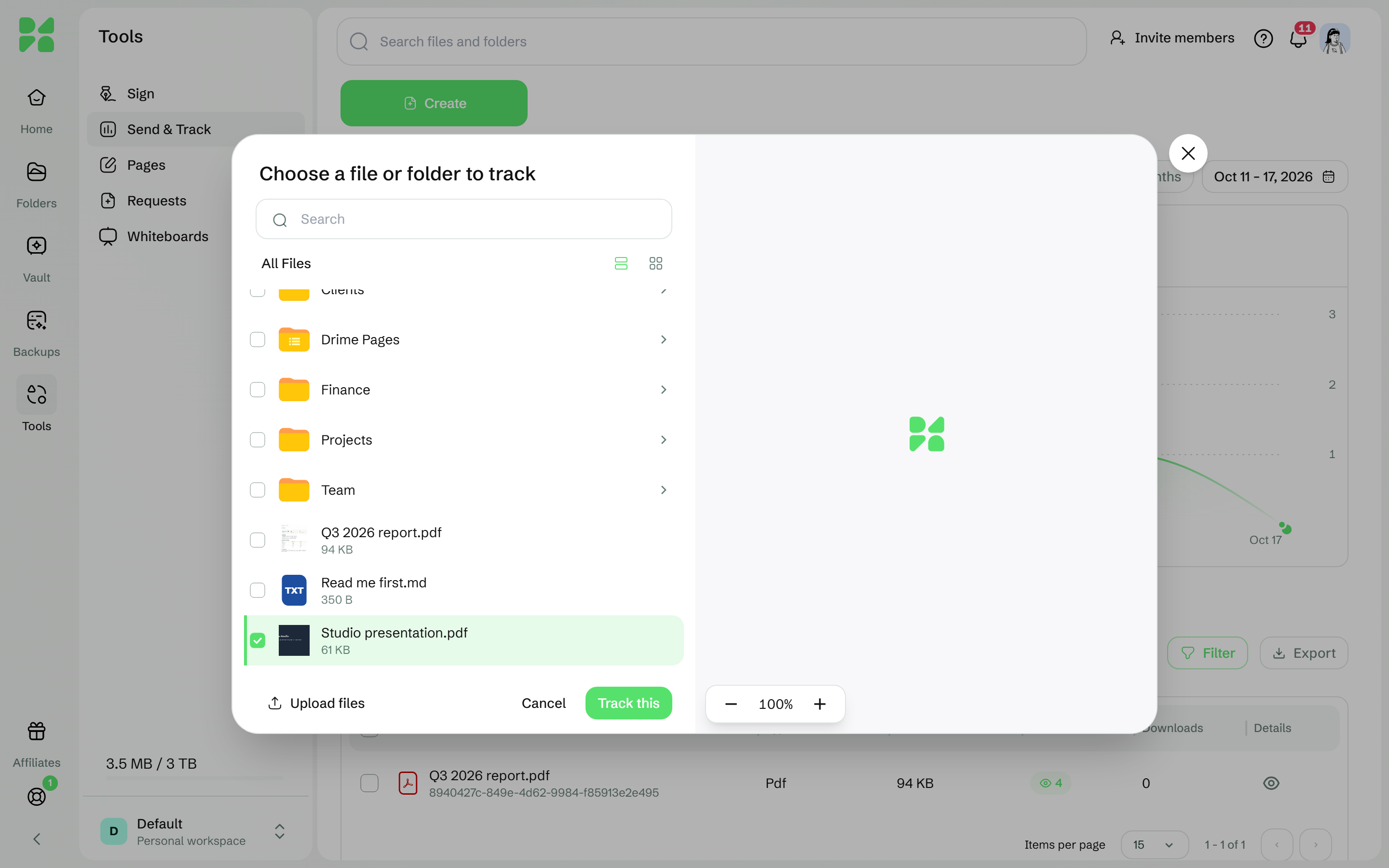
Click Track this.
The message File is now tracked confirms it, and the page of the file opens.
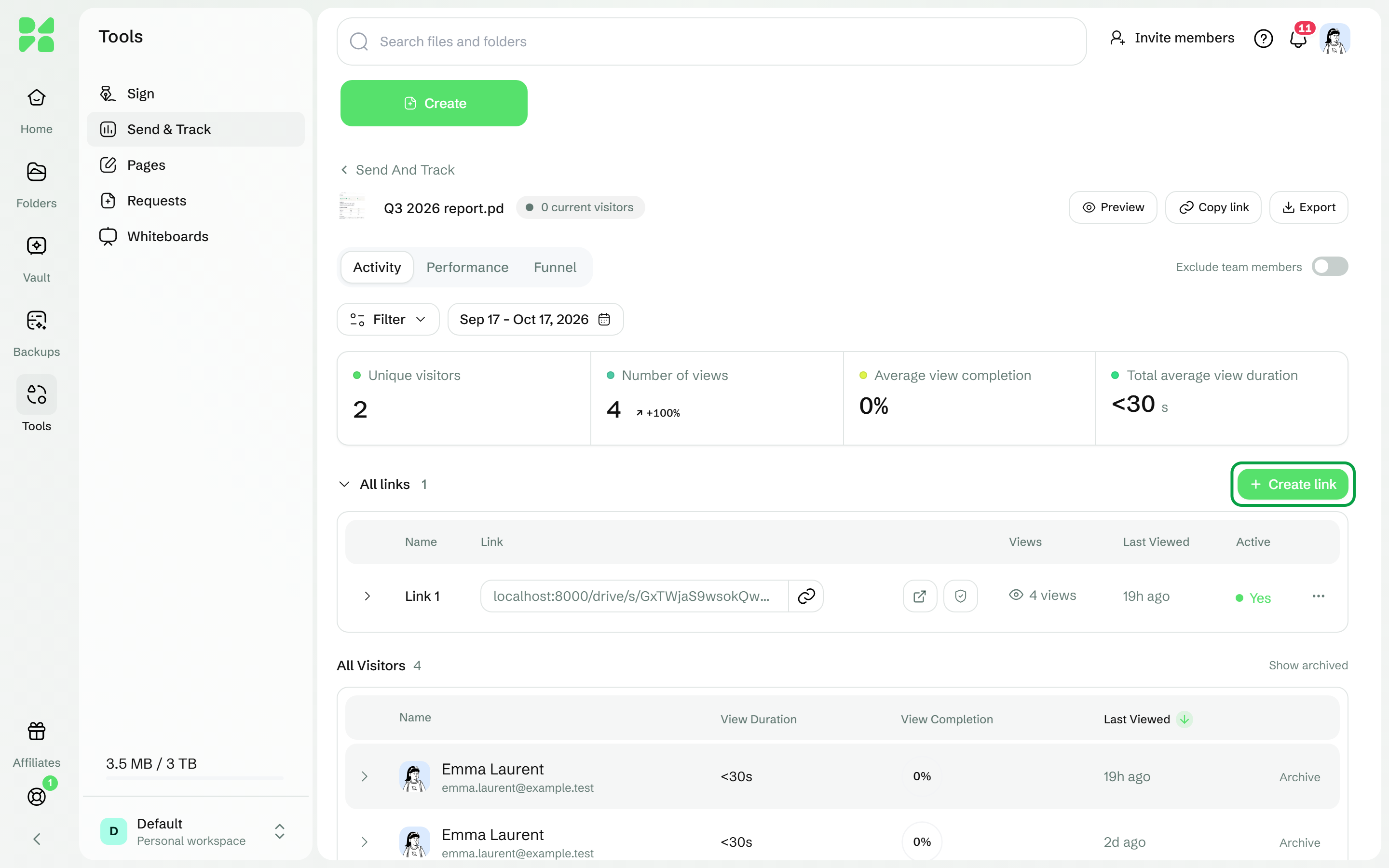
Click Create link.
The message Link created and copied to clipboard confirms it. Paste the link wherever you want to share it.
#Track an existing share link
Open the sharing settings of the file, then the settings of its link (Manage).
In Link settings, turn on Track file.
Click Save.
See Create and copy a share link.
#Track a file from Windows File Explorer
With Drime Desktop for Windows, right-click a file in your Drime folder, point to Drime, then choose Send and track. See Drime actions in File Explorer.
#What visitors can do
By default, people who open a tracked link can view the file and download it. To let them only preview it, turn off Allow download in the link's Link settings: Drime then refuses downloads through that link. See Customise a share link: downloads, custom address and branding.
#Several links for the same file
You can create several tracked links for the same file, for example one for each person or each channel. On the page of the file, each link has its own row with its own views, so you can compare them.
Without a subscription, you can track up to 3 files, and the statistics cover the last 3 months. See Drime plans compared.
#If it doesn't work
What you see | What to do |
|---|---|
You need to be subscribed to have more than 3 files tracked. | Without a subscription, 3 files can be tracked. Stop tracking one, or choose a paid plan. |
Visitors cannot download the file | Allow download is off in the link's Link settings. Turn it on if they should download it. |
Older visits no longer show | Without a subscription, the statistics cover the last 3 months. |
#Next steps
Was this helpful?