%22%3E%0D%0A%3Cpath d=%22M76.678 2.56445H31.5757C14.1489 2.56445 0 16.723 0 34.12V124.386C0 141.866 14.1489 155.941 31.5757 155.941H76.7195C97.8807 155.941 117.05 147.347 130.909 133.479C144.809 119.652 153.356 100.428 153.356 79.2528C153.315 36.9019 119 2.56445 76.678 2.56445Z%22 fill=%22%2356E16C%22/%3E%0D%0A%3Cpath d=%22M276.422 11.9103L186.549 101.844C166.592 121.815 180.74 155.986 208.955 155.986H298.828C316.338 155.986 330.528 141.786 330.528 124.265V34.3314C330.528 6.09744 296.38 -8.06106 276.422 11.9103Z%22 fill=%22%2356E16C%22/%3E%0D%0A%3Cpath d=%22M253.896 179.567C211.574 179.567 177.218 213.863 177.218 256.255V301.43C177.218 318.827 191.367 332.985 208.794 332.985H298.999C316.467 332.985 330.574 318.827 330.574 301.43V256.255C330.574 235.08 321.985 215.897 308.127 202.029C294.31 188.12 275.099 179.567 253.938 179.567H253.896Z%22 fill=%22%2356E16C%22/%3E%0D%0A%3Cpath d=%22M121.573 179.567H31.7002C14.1904 179.567 0 193.767 0 211.289V301.222C0 329.456 34.1483 343.614 54.1061 323.643L143.979 233.71C163.937 213.738 149.788 179.567 121.573 179.567Z%22 fill=%22%2356E16C%22/%3E%0D%0A%3Cpath d=%22M497.237 336.016V2.56519H648.933C752.374 2.56519 817.559 66.2576 817.559 169.312C817.559 272.365 752.415 336.058 648.933 336.058H497.237V336.016ZM550.43 50.8535V287.77H648.933C726.026 287.77 760.838 254.927 760.838 169.312C760.838 83.6963 726.026 50.8535 648.933 50.8535H550.43Z%22 fill=%22%2356E16C%22/%3E%0D%0A%3Cpath d=%22M837.435 336.024V88.6858H886.687V155.368H890.172C897.641 115.55 924.487 83.7034 975.232 83.7034C1031.45 83.7034 1055.81 124.02 1055.81 170.813V203.158H1002.58V181.277C1002.58 145.943 987.638 129.5 950.834 129.5C908.553 129.5 891.168 152.877 891.168 197.179V336.024H837.435Z%22 fill=%22%2356E16C%22/%3E%0D%0A%3Cpath d=%22M1069.68 88.6816V336.019H1123.42V88.6816H1069.68Z%22 fill=%22%2356E16C%22/%3E%0D%0A%3Cpath d=%22M1153.24 336.024V88.6858H1202.49V163.34H1205.48C1211.95 122.027 1238.8 83.7034 1300.5 83.7034C1356.72 83.7034 1387.05 118.041 1394.02 165.333H1397.01C1403.48 123.023 1431.33 83.7034 1493.98 83.7034C1556.63 83.7034 1590.49 127.508 1590.49 187.214V336.024H1537.26V201.622C1537.26 152.835 1517.88 131.95 1470.12 131.95C1417.38 131.95 1398.5 158.814 1398.5 213.58V336.024H1345.27V201.622C1345.27 152.835 1326.39 131.95 1278.63 131.95C1225.4 131.95 1207.02 158.814 1207.02 213.58V336.024H1153.28H1153.24Z%22 fill=%22%2356E16C%22/%3E%0D%0A%3Cpath d=%22M1608.83 212.589C1608.83 135.444 1661.56 83.668 1742.14 83.668C1822.72 83.668 1870.98 125.977 1870.98 201.129C1870.98 210.098 1870.48 217.073 1868.98 224.506H1659.07C1661.06 272.296 1684.43 297.665 1741.64 297.665C1793.38 297.665 1814.75 280.724 1814.75 251.369V247.383H1868.49V251.868C1868.49 304.64 1816.74 340.971 1743.14 340.971C1662.06 340.971 1608.83 295.173 1608.83 212.548V212.589ZM1659.53 194.694H1820.19V193.697C1820.19 147.9 1793.84 126.019 1741.1 126.019C1688.37 126.019 1662.52 150.391 1659.53 194.694Z%22 fill=%22%2356E16C%22/%3E%0D%0A%3Cpath d=%22M1096.52 66.1011C1114.76 66.1011 1129.55 51.304 1129.55 33.0508C1129.55 14.7976 1114.76 0.000488281 1096.52 0.000488281C1078.28 0.000488281 1063.49 14.7976 1063.49 33.0508C1063.49 51.304 1078.28 66.1011 1096.52 66.1011Z%22 fill=%22%2356E16C%22/%3E%0D%0A%3C/g%3E%0D%0A%3Cdefs%3E%0D%0A%3CclipPath id=%22clip0_587_4308%22%3E%0D%0A%3Crect width=%221870.94%22 height=%22341.008%22 fill=%22white%22/%3E%0D%0A%3C/clipPath%3E%0D%0A%3C/defs%3E%0D%0A%3C/svg%3E%0D%0A)
%22%3E%0D%0A%3Cpath d=%22M76.678 2.56445H31.5757C14.1489 2.56445 0 16.723 0 34.12V124.386C0 141.866 14.1489 155.941 31.5757 155.941H76.7195C97.8807 155.941 117.05 147.347 130.909 133.479C144.809 119.652 153.356 100.428 153.356 79.2528C153.315 36.9019 119 2.56445 76.678 2.56445Z%22 fill=%22%23FFFFFF%22/%3E%0D%0A%3Cpath d=%22M276.422 11.9103L186.549 101.844C166.592 121.815 180.74 155.986 208.955 155.986H298.828C316.338 155.986 330.528 141.786 330.528 124.265V34.3314C330.528 6.09744 296.38 -8.06106 276.422 11.9103Z%22 fill=%22%23FFFFFF%22/%3E%0D%0A%3Cpath d=%22M253.896 179.567C211.574 179.567 177.218 213.863 177.218 256.255V301.43C177.218 318.827 191.367 332.985 208.794 332.985H298.999C316.467 332.985 330.574 318.827 330.574 301.43V256.255C330.574 235.08 321.985 215.897 308.127 202.029C294.31 188.12 275.099 179.567 253.938 179.567H253.896Z%22 fill=%22%23FFFFFF%22/%3E%0D%0A%3Cpath d=%22M121.573 179.567H31.7002C14.1904 179.567 0 193.767 0 211.289V301.222C0 329.456 34.1483 343.614 54.1061 323.643L143.979 233.71C163.937 213.738 149.788 179.567 121.573 179.567Z%22 fill=%22%23FFFFFF%22/%3E%0D%0A%3Cpath d=%22M497.237 336.016V2.56519H648.933C752.374 2.56519 817.559 66.2576 817.559 169.312C817.559 272.365 752.415 336.058 648.933 336.058H497.237V336.016ZM550.43 50.8535V287.77H648.933C726.026 287.77 760.838 254.927 760.838 169.312C760.838 83.6963 726.026 50.8535 648.933 50.8535H550.43Z%22 fill=%22%23FFFFFF%22/%3E%0D%0A%3Cpath d=%22M837.435 336.024V88.6858H886.687V155.368H890.172C897.641 115.55 924.487 83.7034 975.232 83.7034C1031.45 83.7034 1055.81 124.02 1055.81 170.813V203.158H1002.58V181.277C1002.58 145.943 987.638 129.5 950.834 129.5C908.553 129.5 891.168 152.877 891.168 197.179V336.024H837.435Z%22 fill=%22%23FFFFFF%22/%3E%0D%0A%3Cpath d=%22M1069.68 88.6816V336.019H1123.42V88.6816H1069.68Z%22 fill=%22%23FFFFFF%22/%3E%0D%0A%3Cpath d=%22M1153.24 336.024V88.6858H1202.49V163.34H1205.48C1211.95 122.027 1238.8 83.7034 1300.5 83.7034C1356.72 83.7034 1387.05 118.041 1394.02 165.333H1397.01C1403.48 123.023 1431.33 83.7034 1493.98 83.7034C1556.63 83.7034 1590.49 127.508 1590.49 187.214V336.024H1537.26V201.622C1537.26 152.835 1517.88 131.95 1470.12 131.95C1417.38 131.95 1398.5 158.814 1398.5 213.58V336.024H1345.27V201.622C1345.27 152.835 1326.39 131.95 1278.63 131.95C1225.4 131.95 1207.02 158.814 1207.02 213.58V336.024H1153.28H1153.24Z%22 fill=%22%23FFFFFF%22/%3E%0D%0A%3Cpath d=%22M1608.83 212.589C1608.83 135.444 1661.56 83.668 1742.14 83.668C1822.72 83.668 1870.98 125.977 1870.98 201.129C1870.98 210.098 1870.48 217.073 1868.98 224.506H1659.07C1661.06 272.296 1684.43 297.665 1741.64 297.665C1793.38 297.665 1814.75 280.724 1814.75 251.369V247.383H1868.49V251.868C1868.49 304.64 1816.74 340.971 1743.14 340.971C1662.06 340.971 1608.83 295.173 1608.83 212.548V212.589ZM1659.53 194.694H1820.19V193.697C1820.19 147.9 1793.84 126.019 1741.1 126.019C1688.37 126.019 1662.52 150.391 1659.53 194.694Z%22 fill=%22%23FFFFFF%22/%3E%0D%0A%3Cpath d=%22M1096.52 66.1011C1114.76 66.1011 1129.55 51.304 1129.55 33.0508C1129.55 14.7976 1114.76 0.000488281 1096.52 0.000488281C1078.28 0.000488281 1063.49 14.7976 1063.49 33.0508C1063.49 51.304 1078.28 66.1011 1096.52 66.1011Z%22 fill=%22%23FFFFFF%22/%3E%0D%0A%3C/g%3E%0D%0A%3Cdefs%3E%0D%0A%3CclipPath id=%22clip0_587_4308%22%3E%0D%0A%3Crect width=%221870.94%22 height=%22341.008%22 fill=%22white%22/%3E%0D%0A%3C/clipPath%3E%0D%0A%3C/defs%3E%0D%0A%3C/svg%3E%0D%0A)
Upload files and folders
Add files or whole folders to Drime from your browser with the Upload button, drag and drop or a shortcut, and follow every transfer in the upload panel.
You can add single files, several files at once or whole folders with their subfolders. There is no limit on the number of files in one upload.
#Upload with the Upload button
Open the folder where the files should go.
Above the file list, click Upload, then Upload files or Upload folder.
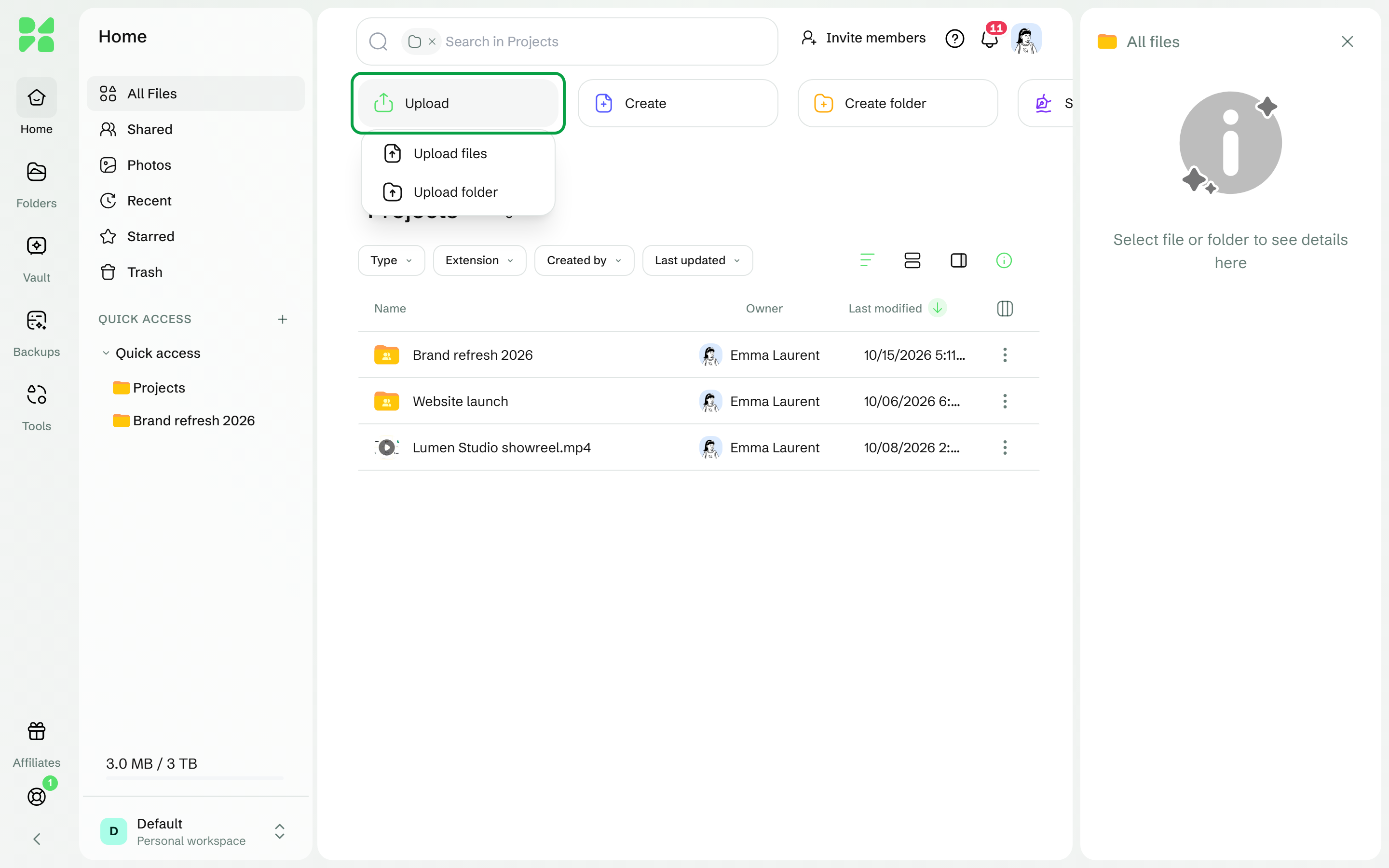
In an empty folder, click Upload in the middle of the page, then File or Folder.
Choose the files or the folder on your computer.
The upload starts right away and the upload panel opens at the bottom right of the screen. Upload complete appears when it is done.
You can also right-click an empty area of the page and choose Upload files or Upload folder.
On a small screen, tap the New button, then Upload, and choose File or Folder.
#Drag and drop
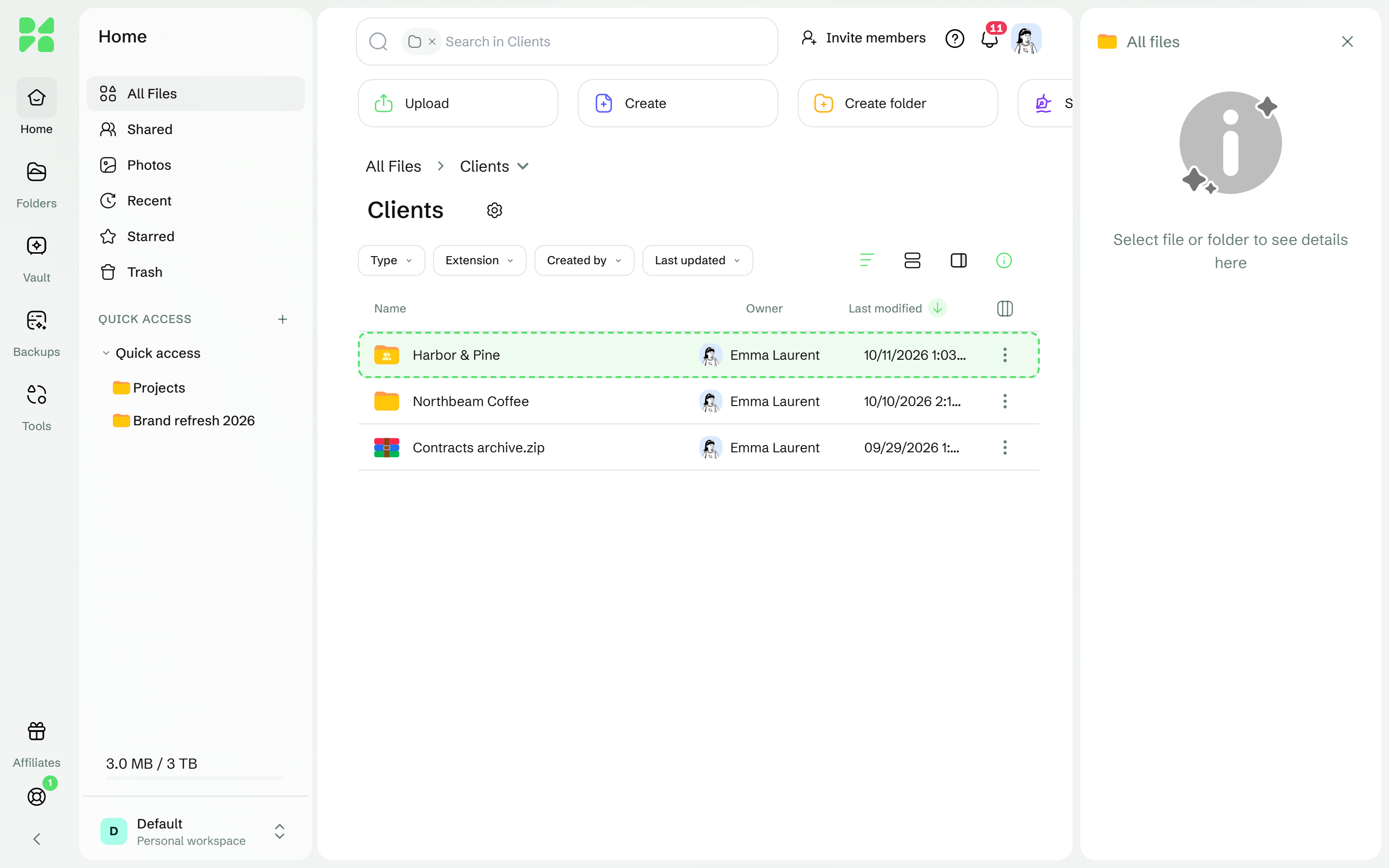
Drag files or folders from your computer and drop them:
on the file list, to add them to the folder you are viewing;
on a folder in the list or in the sidebar, to add them to that folder.
The folder that will receive them is highlighted before you release.
#Keyboard shortcuts
Action | Windows | Mac |
|---|---|---|
Upload files | Ctrl + Alt + U | Cmd + Option + U |
Upload a folder | Ctrl + Alt + Shift + U | Cmd + Option + Shift + U |
#What you can upload
Limit | Value |
|---|---|
Size of one file | Does not depend on your plan |
Files in one upload | No limit |
Files sent at the same time | 8 (6 when there are many small files) |
Length of a file name | Up to 255 characters |
Your storage space still has to hold the files. See Maximum file size and upload limits.
#Follow your uploads
The upload panel lists your transfers in the Transfers, Completed and Failed tabs, and shows where the files go, for example Import to All Files.
To try a failed file again, click Retry on its row, or Retry all for every failed file. Copy error details copies what went wrong, useful if you contact support.
To stop everything, click Cancel all, then confirm in Cancel all uploads?.
To tidy the list, click Clear all completed.
Once a file is uploaded, its row lets you share it or open its preview.
You can also pause and resume all transfers from the panel.
Two more tabs appear when needed: Extracting, for archives you extract, and Downloads, for files you download. See Open and extract archives.
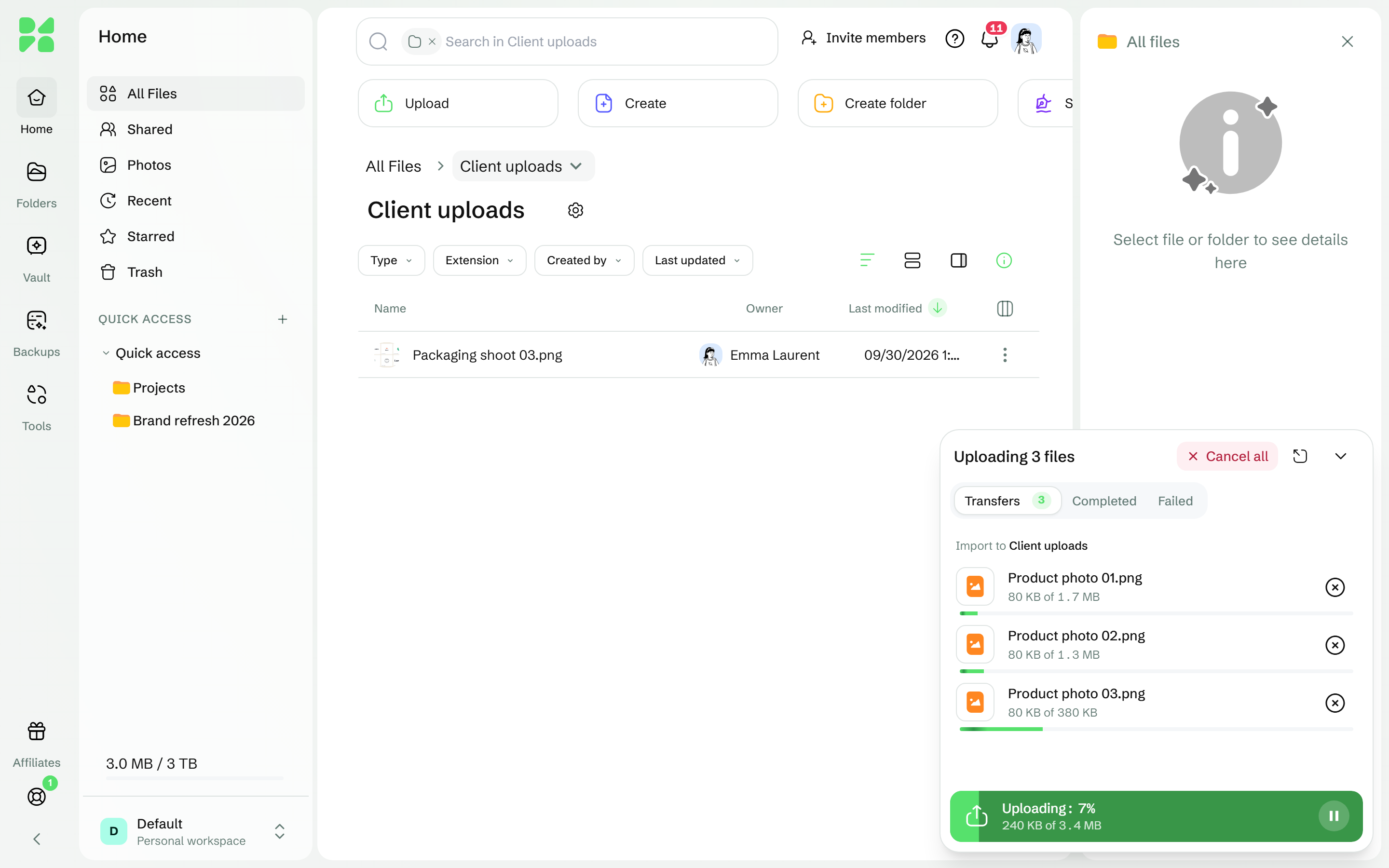
Each row shows its progress, then a status: Paused while the connection is down, Finalizing in progress at the end of a large file, while Drime puts its parts together, and Upload failed if the transfer stopped. Finalizing in progress can last a little while on a big file: wait, and keep the tab open.
#If the connection drops
Uploads pause when your network drops and resume on their own when it comes back. Drime tells you with Network issue detected, uploads paused. Will retry shortly. or, if you are offline, You are offline, uploads will resume when connected. Large files upload in parts. If you refresh the page or the browser closes, upload the same file again from the same browser within 6 days: only the missing parts are sent.
#When a file with the same name exists
If a file with the same name is already in the folder, Duplicate Files Found opens, with Replace existing file selected:
Replace existing file: the upload becomes a new version of the existing file.
Keep both files: a number is added to the name, for example Report (1).pdf.
Skip file: the file is not uploaded.
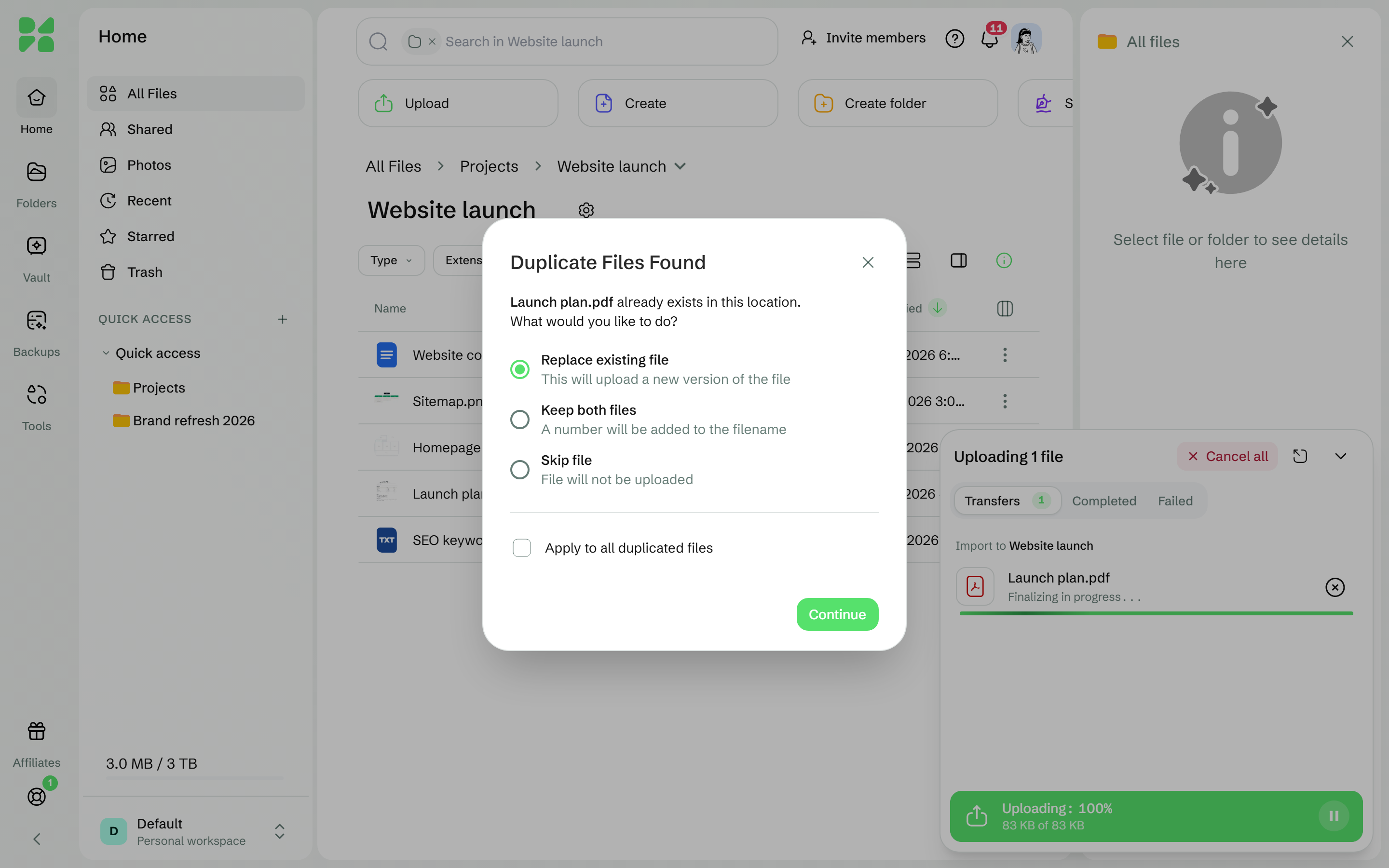
Tick Apply to all duplicated files to use the same choice for the whole upload. Drime then remembers it in this browser: to be asked again, click Ask me next time on the message that follows, or change Duplicate files in Settings > General. Names must match exactly, capital letters included.
See Uploading a file that already exists.
#Other ways to add files
From your computer, with Drime Desktop: what you put in your Drime folder is uploaded for you. See How sync works.
From your phone, with automatic photo backup. See Back up your photos.
From another cloud service, without downloading anything first. See Import from another cloud.
#If it doesn't work
What you see | What to do |
|---|---|
You have exhausted your allowed space of … | Your storage is full. Free up space or upgrade your plan. |
The workspace owner's storage is full. … | Files in this workspace use the owner's storage. Ask the owner to free up space or upgrade. |
The file size may not be greater than … | The file is over the maximum size. See Maximum file size and upload limits. |
… exceeds maximum allowed size of … | The file is over the maximum size and was not sent. See Maximum file size and upload limits. |
This file type is not allowed | This type of file cannot be uploaded. If you need to store it, contact support. |
Could not read any files from what you dropped. | Drime could not read the items you dropped. Use Upload > Upload files or Upload folder instead. |
Backup folders are read-only. Changes can only be made on your local device. | You are in a computer backup: files can only reach it from that computer. Upload to another folder. |
Upload timed out | The transfer stalled. Check your connection, then click Retry. |
Upload could not start. Please try again. | Click Retry. If it keeps failing, contact support with the error details. |
For an upload that stays stuck, see My upload fails or is stuck.
Was this helpful?